
Following the release of Workbench v4.8.1, we introduced key improvements to Activities & Timecodes in Upvise. These updates were designed to enhance performance, validation, and display consistency across the platform.
What were the technical changes?
To implement these enhancements, the Daily Diary and Purchase Order form now uses datasets in Upvise (called wbActivityTimeCodes_Lines and wbActivityGroups_Lines) to source and display activity and timecode information. The new datasets were released in 4.7.27 workbench release.
Note: This dataset is managed via the Upvise integration and should not be manually modified.
How to Review Timecodes in the Dataset:
If you would like to verify if a timecode or activity exists in Upvise, System administrators can:
In Upvise, go to Forms > Options > Datasets.
Select the dataset
wbActivityTimeCodes_Lines or wbActivityGroups_LinesUse the Timecode Column to search using the timecode or ActivityCode to search for the activity code
wbActivityTimeCodes_LinesDatasetwbActivityGroups_Lines Dataset 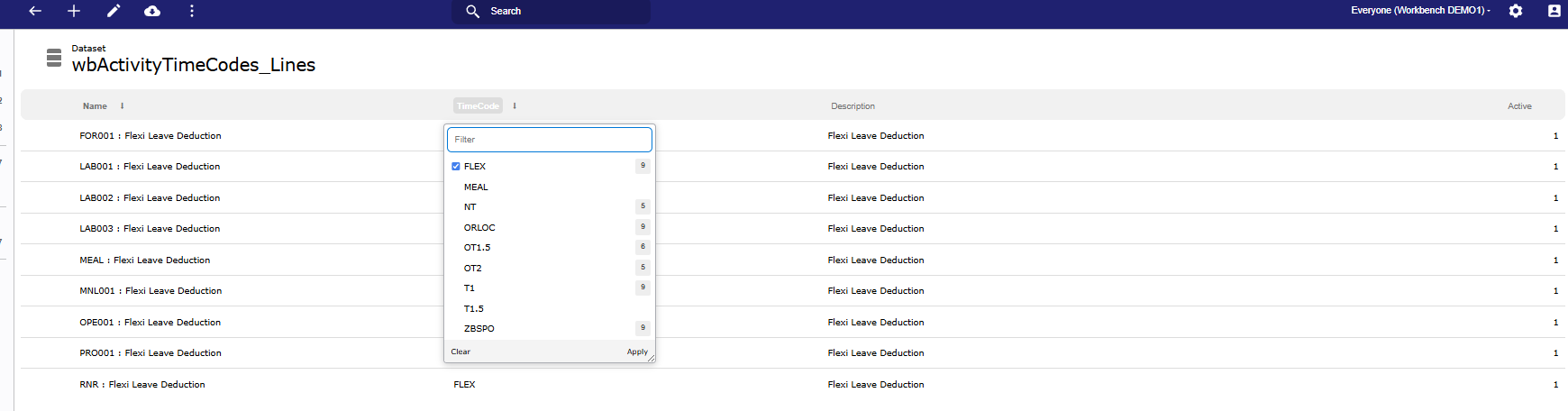
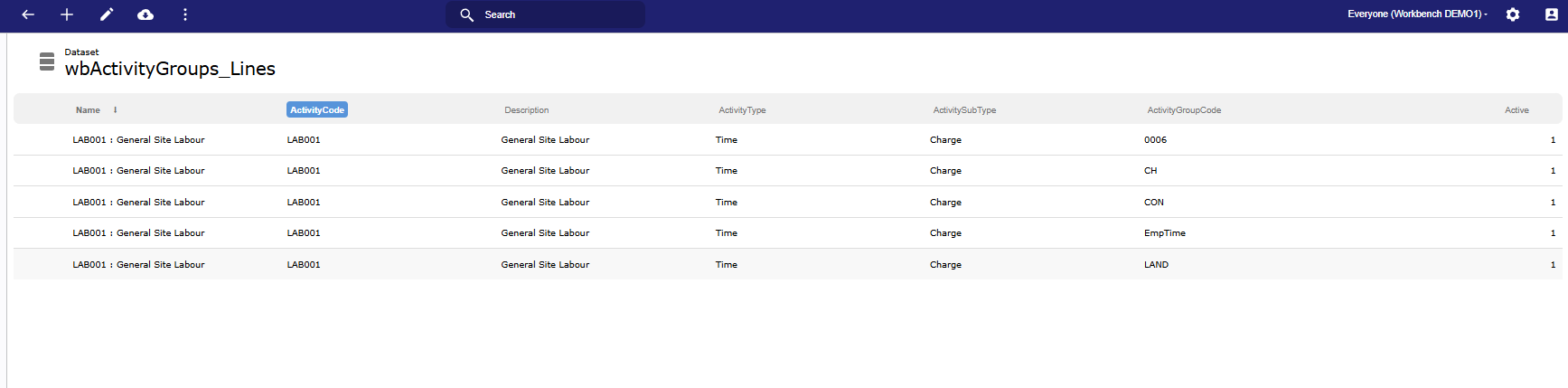
If the relevant code is not listed here, or if the dataset is missing, refer to the steps below.
Steps to sync the missing dataset:
Log in to Workbench.
Navigate to the Upvise Integration screen.
Select the Finco where the affected Workbench Job resides.
Click “Manual Data Sync.”
Select “Activity Groups & time Codes”
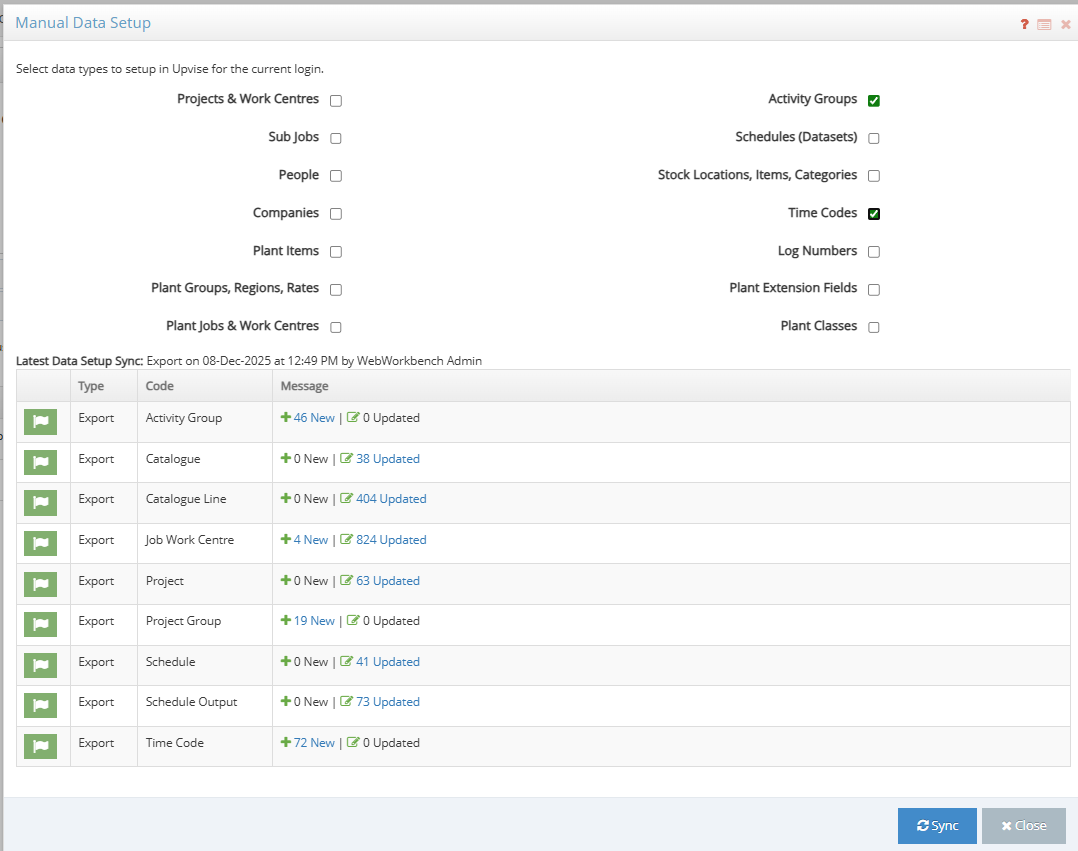
⏳ Note: This sync will check all data releating to the selected options in workbench. This may take some time depending on data volume.
After the sync completes, log out of Upvise and log back in.
For Time Activities or Timecodes entered in the Allowances subform of the Daily Diary, please also refer to the instructions below in addition to the steps outlined above under Why is my new activity not available in my Upvise daily diary?
If your activities are still not appearing after completing these steps, please raise a support ticket for further assistance.