
Overview
As a system administrator, you can use User Traffic to:
Verify when a user has logged in or out of Upvise
Confirm the last successful data sync for a user
Diagnose issues caused by unsynced local data on a device
Understanding the difference between logout activity and last sync time is critical when troubleshooting missing or inconsistent data.
How to Check a User’s Last Sync Status
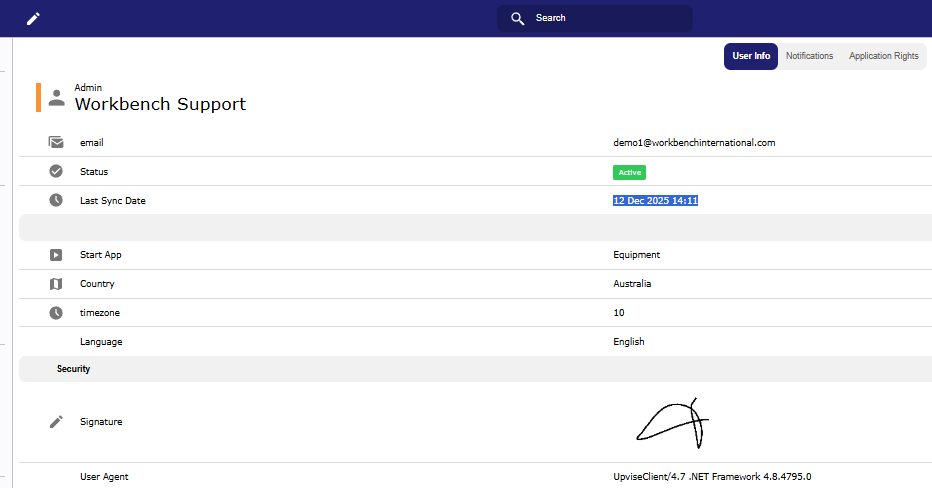
The Last Sync time reflects the last successful sync that included data changes
If this timestamp has not updated:
No new data has successfully synced since that time
Any locally visible changes may still be stored only on the device
This is commonly seen when:
A user has not logged out/in for an extended period
The device is offline or experiencing sync errors
The app version or device OS is outdated
Important Notes About Sync Behaviour
When a user logs out of Upvise, any data that has not finished syncing to the cloud will be lost.
Records that are still “waiting to send” at the time of logout are not saved.
The Last Sync time only updates when:
A sync completes successfully and
There is new or changed data included in that sync
If a sync attempt occurs but fails, the Last Sync time will not update.
If a sync check runs but there is no new or changed data, the Last Sync time will remain unchanged.
The displayed Last Sync time therefore reflects the most recent successful sync that included data changes.
Example interpretation:
If the Last Sync time shows the 12th December 2025, this means the last successful data update synced on that date. Any changes visible only on the device after that point have not been successfully synced to the cloud.
How to View User Log In / Log Out History (User Traffic)
Prerequisites
You must have System Administrator access (Admin User Type in upvise)

Steps
Go to Settings
Select User Traffic
In the traffic filters, choose one of the following:
LOGON – to view user login activity
SIGNOUT – to view user logout activity
Use the date navigation arrows to move backward or forward in time
Use the column headers to:
Sort by date/time
Filter by user
Review device and session details
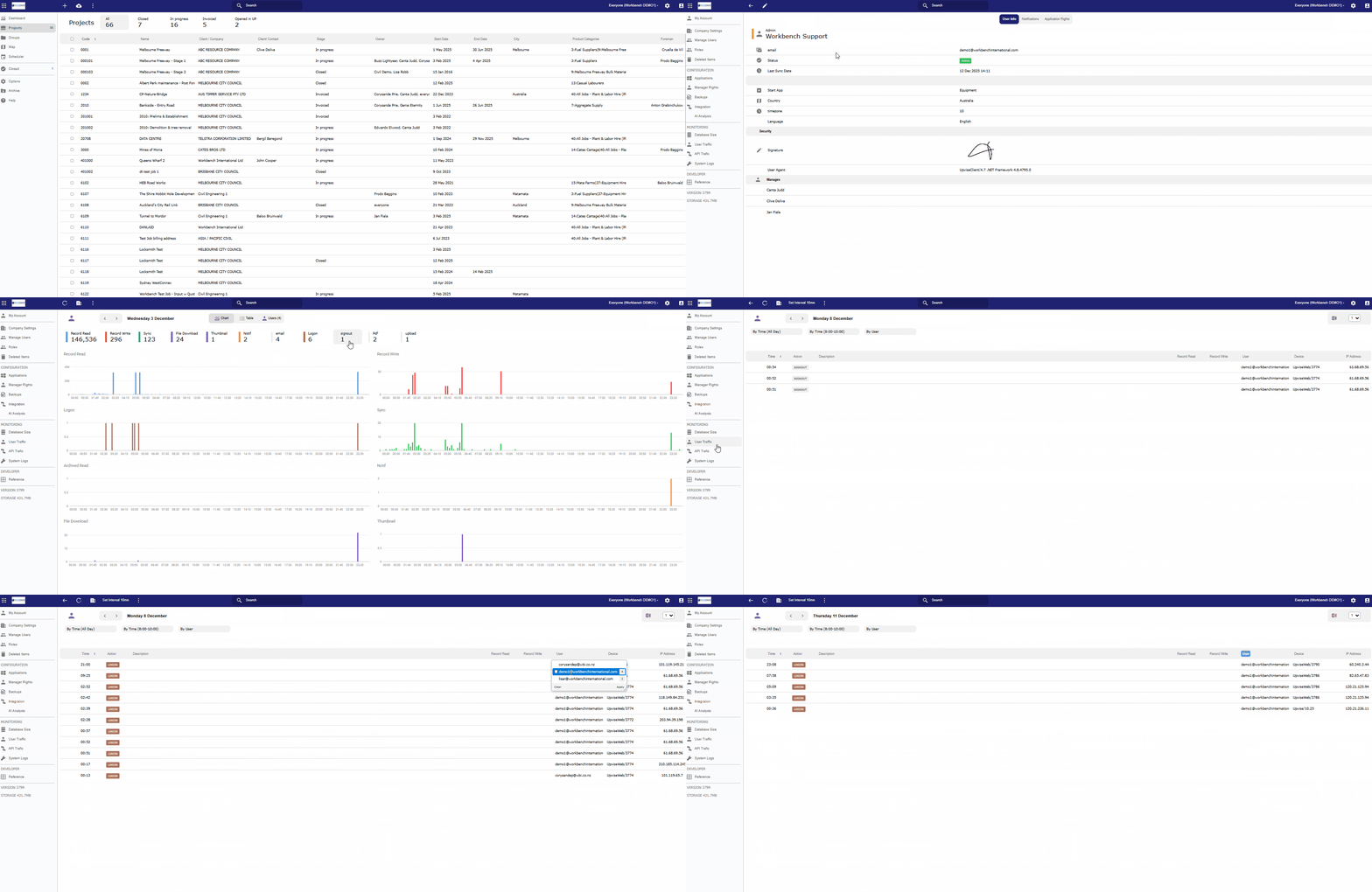
This view allows you to confirm:
Whether a user has logged out recently
How often they are logging in/out
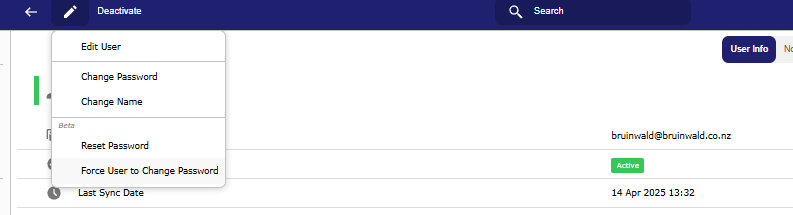
Whether troubleshooting steps (such as a forced logout) have been completed (force user to change password)
Troubleshooting Tip
If a user is experiencing data issues:
Check SIGNOUT activity to confirm whether they have logged out recently
Review the Last Sync time
If required, reset the user’s password to force a logout
Ask the user to log back in so the local database is refreshed
Related: