
Please follow the steps below to correctly sign out of Upvise on your device before logging back in.
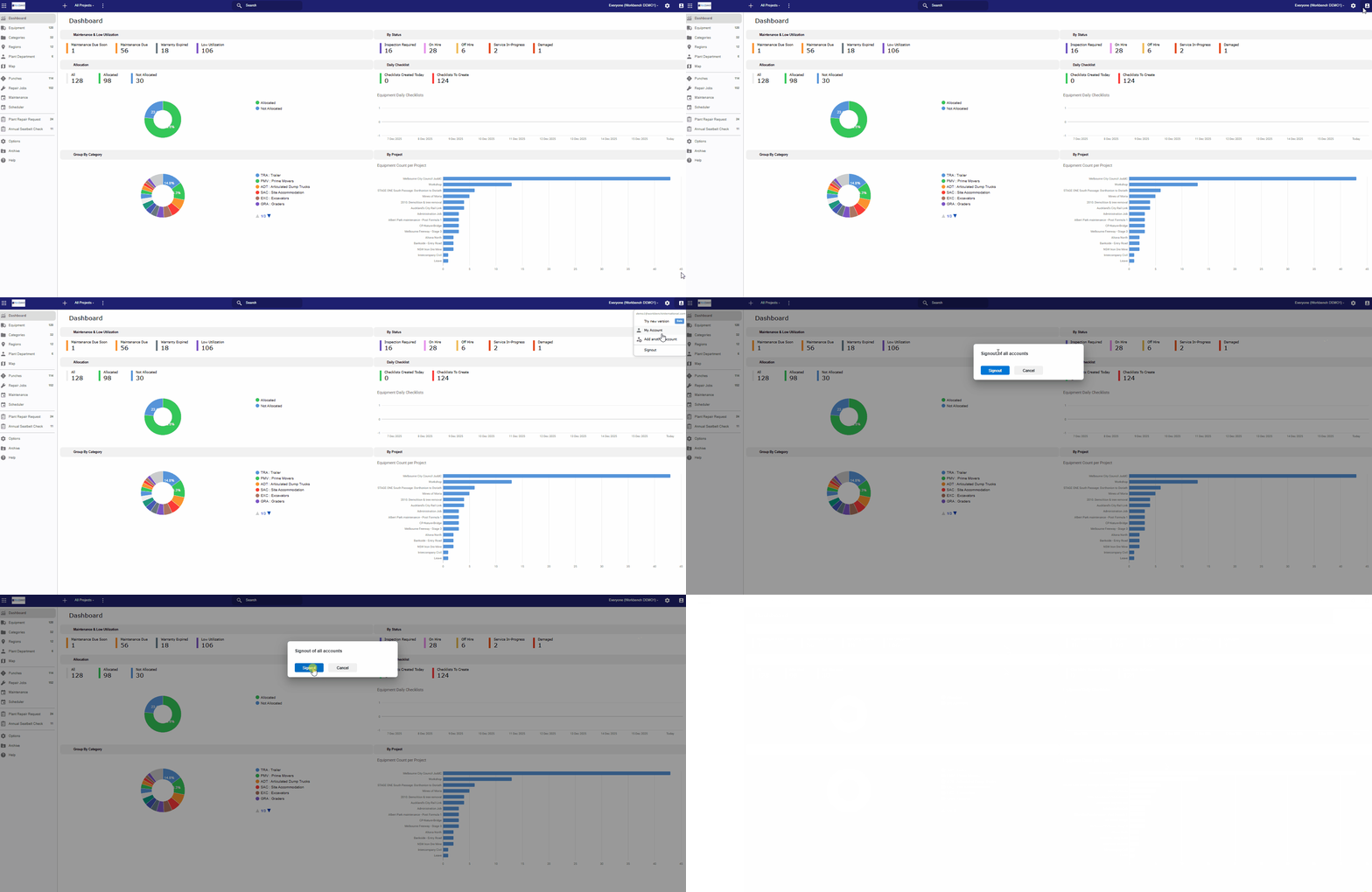
Sign out of Upvise on Web (Browser)
Open Upvise in your browser
Look at the top-right corner
Click your name / user icon
Select Log out
✅ This immediately ends your session
⚠️ Closing the browser tab does NOT log you out
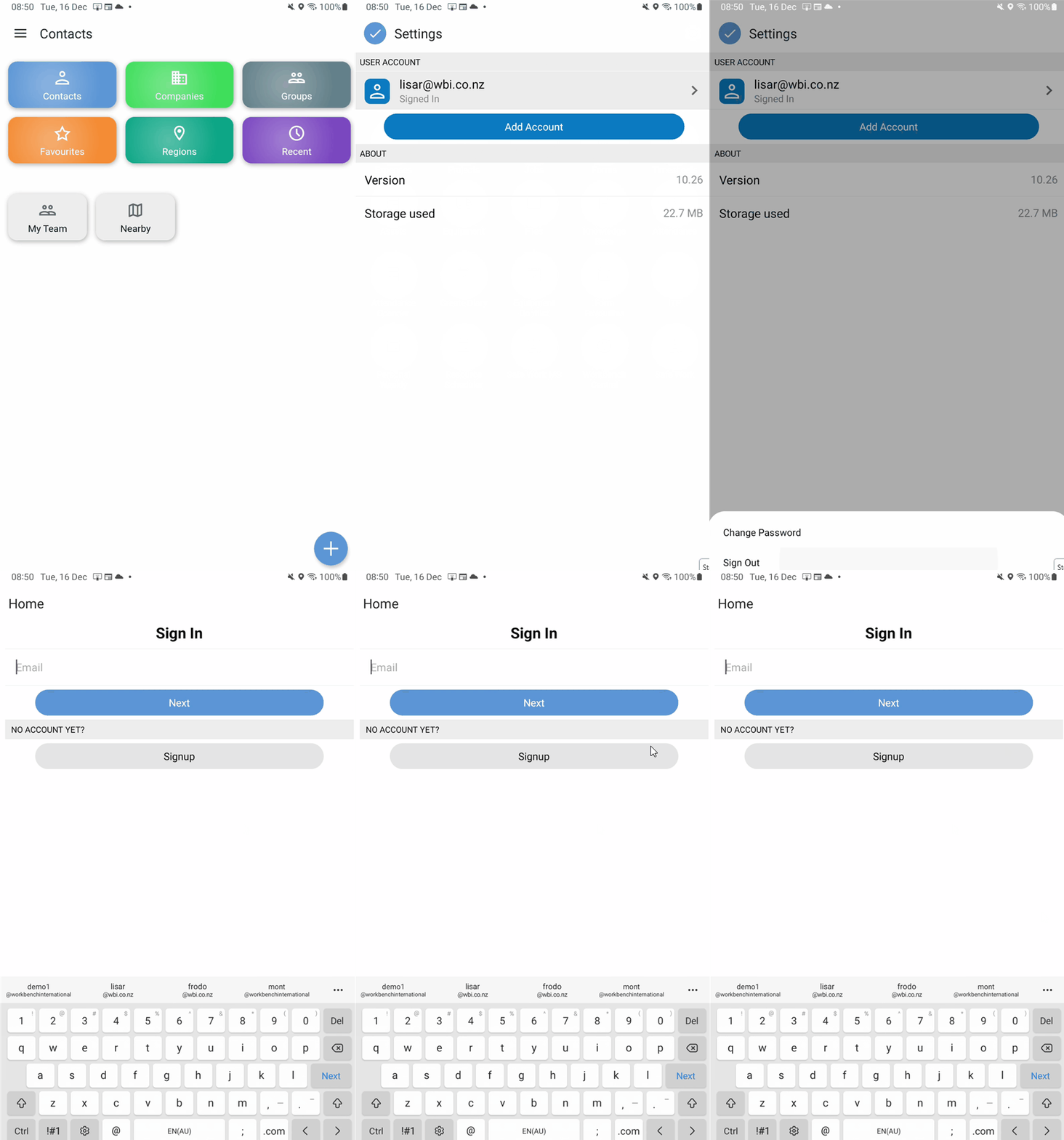
? Sign out of Upvise on Mobile (iOS & Android)
Open the Upvise app
Tap the ☰ menu (top-left or bottom, depending on version)
Go to Settings
Scroll all the way down
Tap Log out
Confirm when prompted
✅ This clears the local session and forces a fresh login
❌ Force-closing the app or restarting the phone does not log out
Important (this matters for troubleshooting)
Logging out refreshes the local database on the device
If a user:
hasn’t logged out in weeks/months, or
had admin changes / deleted activities / dataset changes
? their device can keep stale or invalid data until logout
This is why logout is often the first mandatory troubleshooting step.
Related: Viewing User Signout LOGON History & Last Sync Information (System Admin)