
Overview
Contacts are primarily created and managed in Workbench as either Companies or People, and these records are synchronised to Upvise. Because of this integration, duplicate or conflicting contact records in Workbench can result in issues within Upvise, particularly where contact names or email addresses are not unique.
Contact Sync Behaviour
When contacts are created in Workbench, they are automatically synced to Upvise.
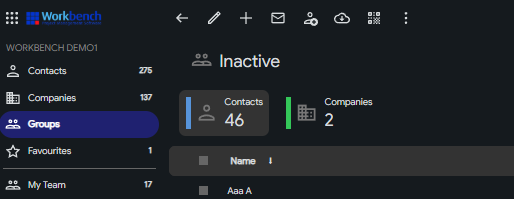
If a contact is made inactive in Workbench, the corresponding contact in Upvise will automatically be moved to the Inactive group.
- Contacts - Groups - Inactive
Upvise Contact Requirements
Upvise requires all contacts and related user accounts to have unique names and unique email addresses.
If duplicate names or email addresses exist, this can cause issues with:
user account access
syncing behaviour
contact identification within the system
PO number sequencing
User Access
This is particularly important where the same individual may exist in Workbench in multiple formats, such as:
an employee
a subcontractor
a company contact
Recommended Contact Structure
Where the same person appears in multiple roles, the records should be clearly distinguished and use unique email addresses.
For example:
John Doe – Employee –
john.doe@company.comJohn Doe (Subcontractor) – Subcontractor contact –
john.doe.contractor@company.comJohn Doe Pty Ltd – Company –
accounts@johndoepytyltd.com.au
This ensures each contact remains uniquely identifiable in Upvise and prevents account or sync conflicts.



How to Identify Where a Contact Was Created
You can verify whether a contact in Upvise originated from Workbench by exporting the Contacts list in Upvise to Excel.
In the exported file:
The ID column will be visible.
If the contact originated from Workbench, the ID will match the Person ID or Company ID in Workbench.
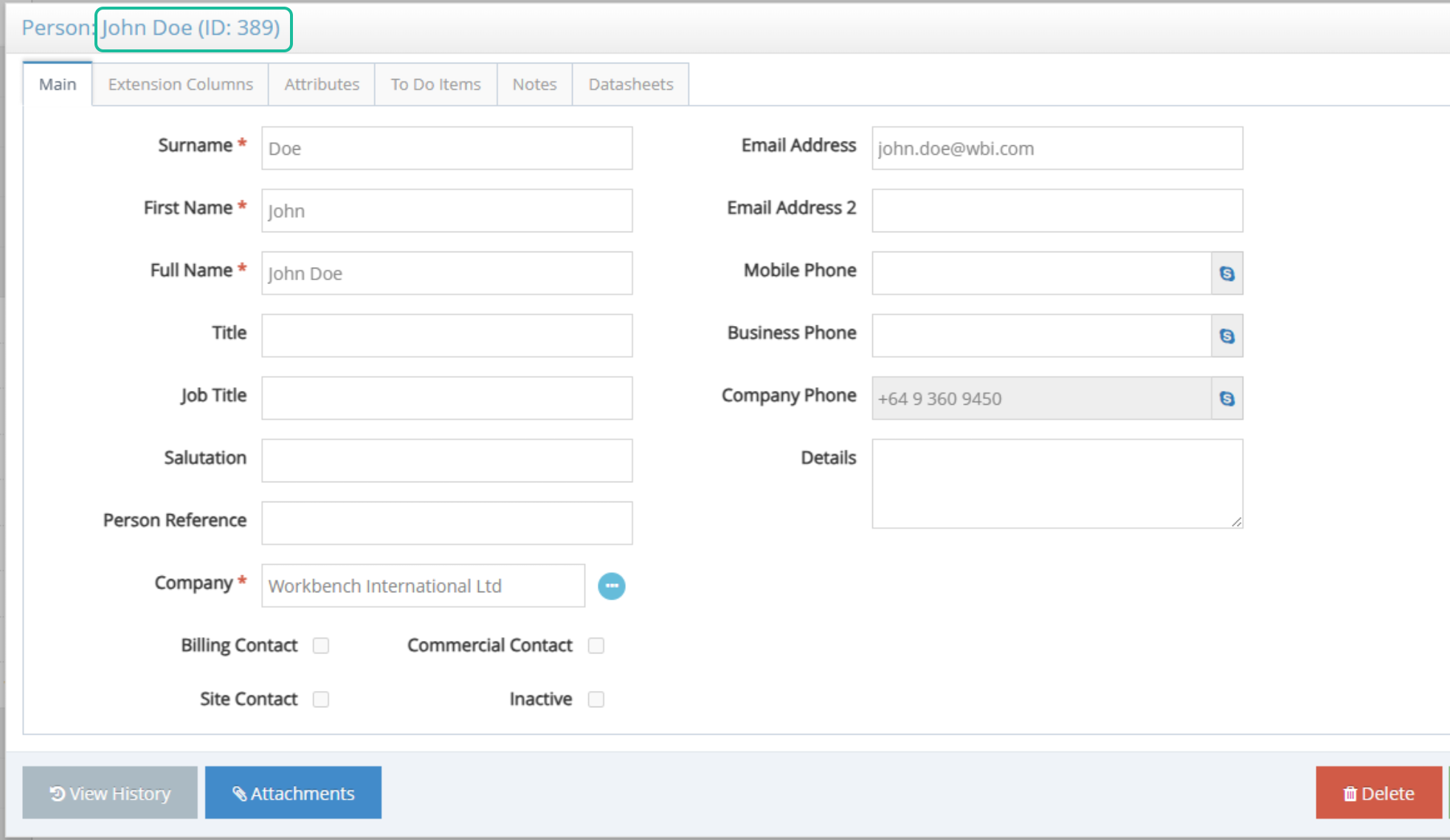
If the ID is an alphanumeric string, this indicates the contact was created directly in Upvise and does not have a corresponding record in Workbench.

Recommended Review Process
If duplicate contact issues are encountered, the following checks are recommended:
Review the contact records in Workbench.
Ensure that contact names are unique.
Ensure that each contact has a unique email address.
Distinguish contacts where the same individual appears in multiple roles.
Set obsolete or unused contacts to inactive in Workbench.
Updates to Contact names, emails or status (inactive) will sync and update Upvise in the next scheduled hourly sync.
Ask any impacted users to Sign out of upvsie and back in How do I Signout/ Logout of Upvise?
Related:
- Troubleshooting Guide: What to Check When You Experience Data Issues in Upvise
- Contacts - Upvise Documentation - Confluence