
Overview
This article explains how to generate QR codes for equipment records in Upvise, specifically for use in pre-start workflows. Scanning these QR codes allows users to quickly access the correct equipment record within the system.
QR Code URL Format
All equipment QR codes in Upvise must follow this standard URL structure:
https://s3.upvise.com?db=[databaseid]&ta=[table]&id=[recordid]
Parameter Breakdown
1. [databaseid]
- A numeric identifier unique to your Upvise database.
- This ensures the QR code points to the correct company environment.
How to retrieve it:
- Log into upvise
- Navigate to Settings - Company Settings
- The database ID will be available in the Company Settings table in Numeric format
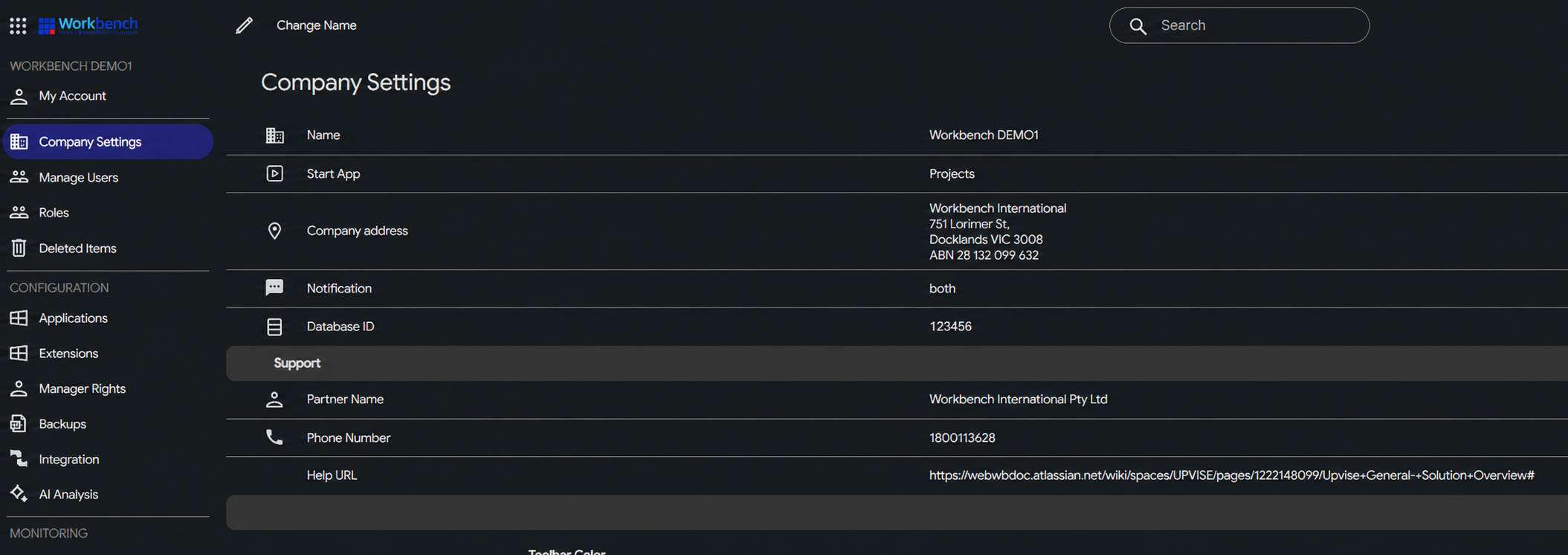
2. [table]
- Identifies the table where the record is stored.
- For equipment, the table value is always tools
3. [recordid]
- The unique ID of the equipment record in Upvise.
- This links the QR code directly to a specific piece of equipment.
Example QR Code URL
https://s3.upvise.com?db=12345&ta=tools&id=ADT001
| Parameter | Value | Description |
|---|---|---|
| db | 12345 | Database ID |
| ta | tools | Equipment table |
| id | ADT001 | Equipment record ID |
How It Works
- A QR code is generated using the URL format above.
- The QR code is attached to the physical equipment.
- During a pre-start:
- The user logs into upvise and opens equipment module
- The user clicks "lookup"
- The user scans the QR code.
- Upvise opens the exact equipment item.
- The user can complete inspections, checks, pre-starts or forms linked to that equipment.
Related:
Plant Maintenance (Pre-Starts & Service Management) - Upvise Documentation - Confluence
1. Pre-Start Guide (Operators) - Upvise Documentation - Confluence