
Upvise allows bulk export of Form PDFs from within a Project. This is useful when you need to provide multiple completed forms (for example, Incident Reports or Health & Safety forms) to external auditors or for internal compliance records.
Bulk PDF export is currently available via Projects → All Forms and will generate a single ZIP file containing the selected Form PDFs.
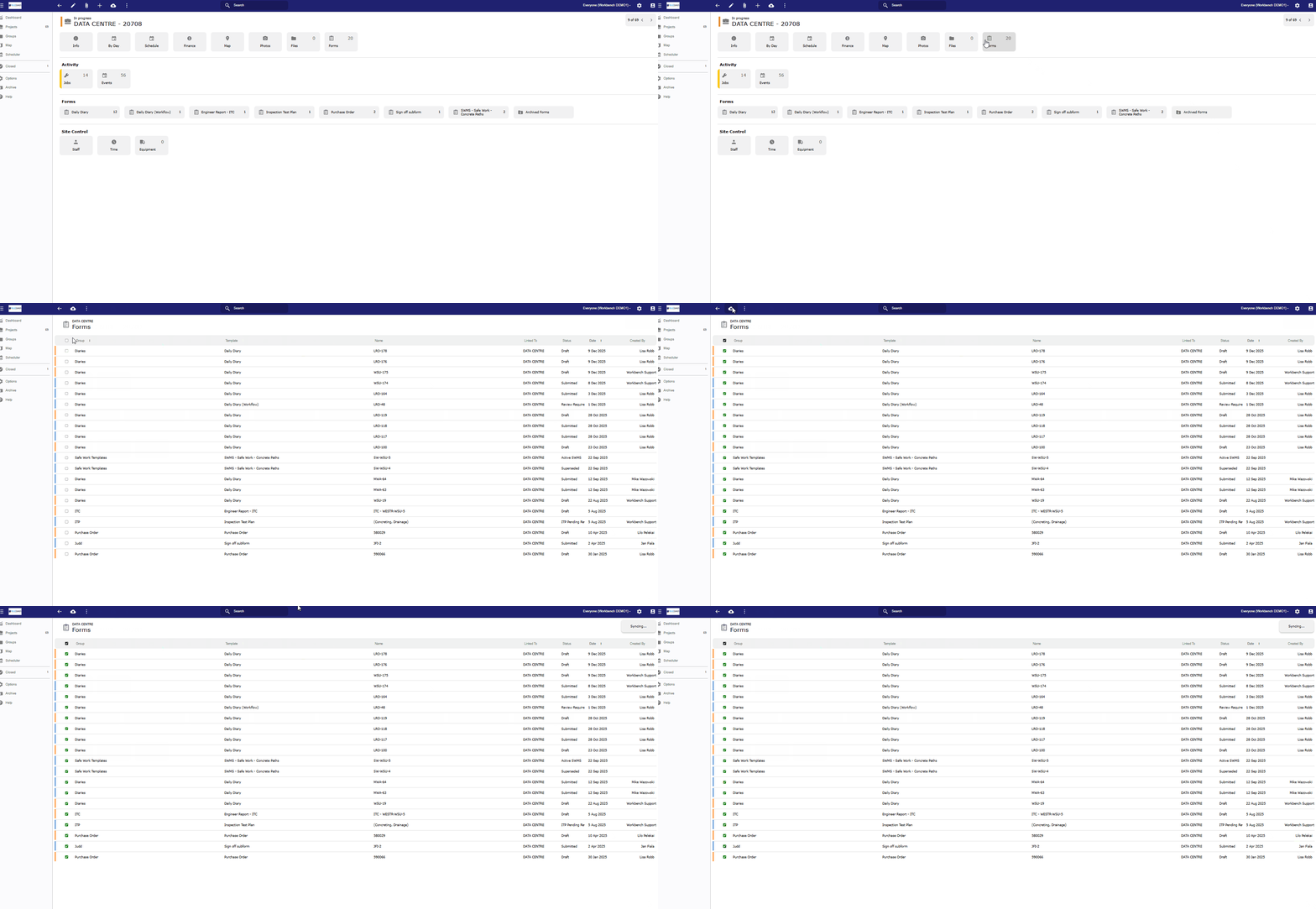
Steps to Export Bulk Form PDFs
Open the Project
Navigate to Projects
Open the relevant project you want to export forms from
Go to Forms
Within the project, select All Forms from the left-hand menu
This will display all forms linked to that project
Filter the Forms (Optional)
Use column filter if needed filters such as:
Form
Date
Status etc
Filtering first ensures only the required forms are included in the export
Bulk Select Forms
Use the checkbox column to select multiple forms
You can select individual forms or use the header checkbox to select all visible records
Export Form PDFs
With multiple forms selected, choose Export Form PDFs from the bulk actions Cloud icon
Upvise will generate a ZIP file containing a PDF for each selected form
Related: Why Upvise Exports Files in a ZIP Folder & How to Extract Them