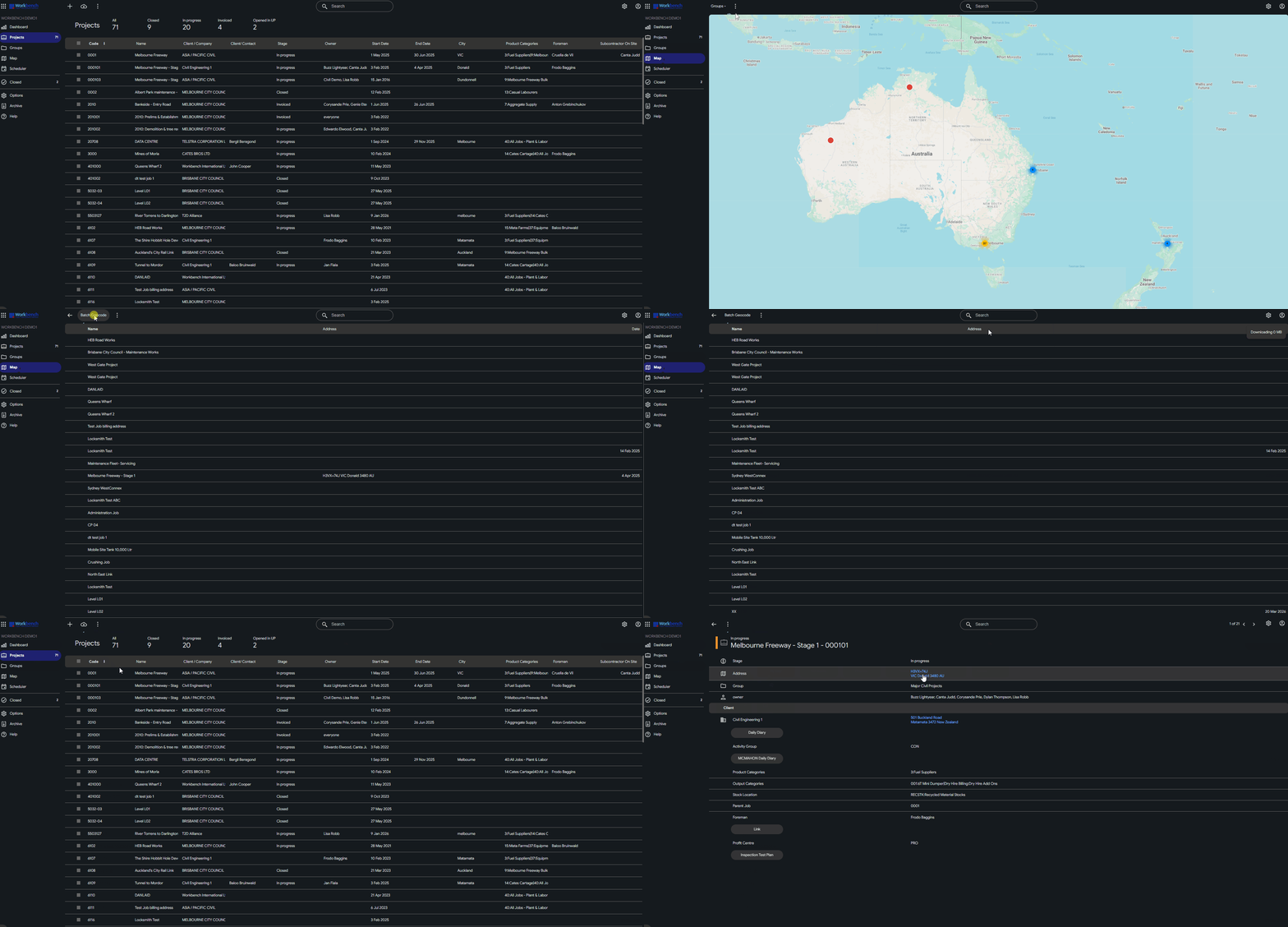
Workbench address fields require a structured Site address to sync to Upvise to be geo-coded.
If you only have a pinned location or Plus Code from Google Maps, follow the steps below to convert it into a usable address and enter it correctly.
✅ Address Fields in Workbench
Workbench uses the following structure:
| Workbench Field | What to Enter |
|---|---|
| Street Line 1 | Street number + street name (e.g. 25 Smith Street) |
| Street Line 2 | Optional: Unit, apartment, level, building name (e.g. Unit 4, Level 2) |
| Suburb | Suburb or locality (e.g. Brunswick) |
| City | City or major town (e.g. Melbourne) |
| State | State / Province abbreviation (e.g. VIC) |
| Country | Country name (e.g. Australia) |
| Post Code | Postcode only (e.g. 3056) |
⚠️ Do not place the full address into a single field. Each component must be entered separately.
How to Get the Address from Google Maps (Desktop or Mobile)
Desktop (Web Browser)
- On your computer, open Google Maps.
- Click the location where you need a Plus Code.
- At the bottom, in the info box, click the coordinates.
Example: 53.339688, -6.236688.
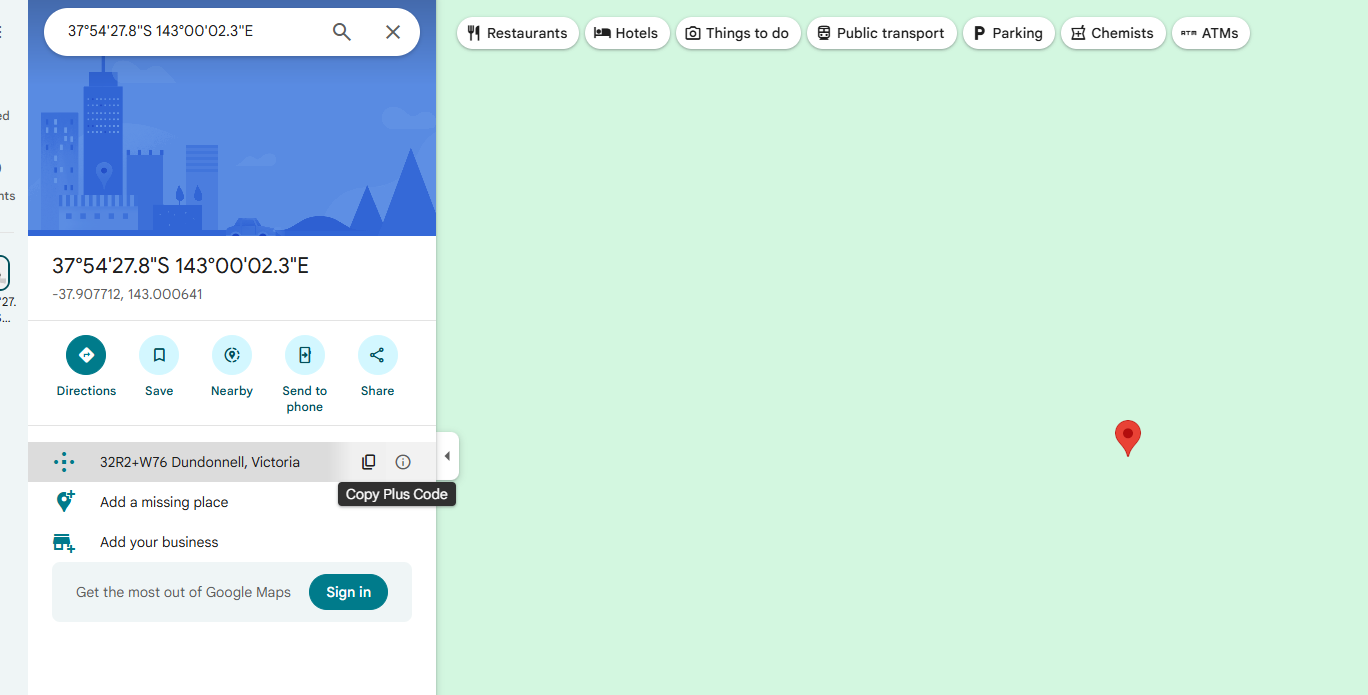
- To copy a location’s code, on the left panel, click the Plus Code
 .
. 
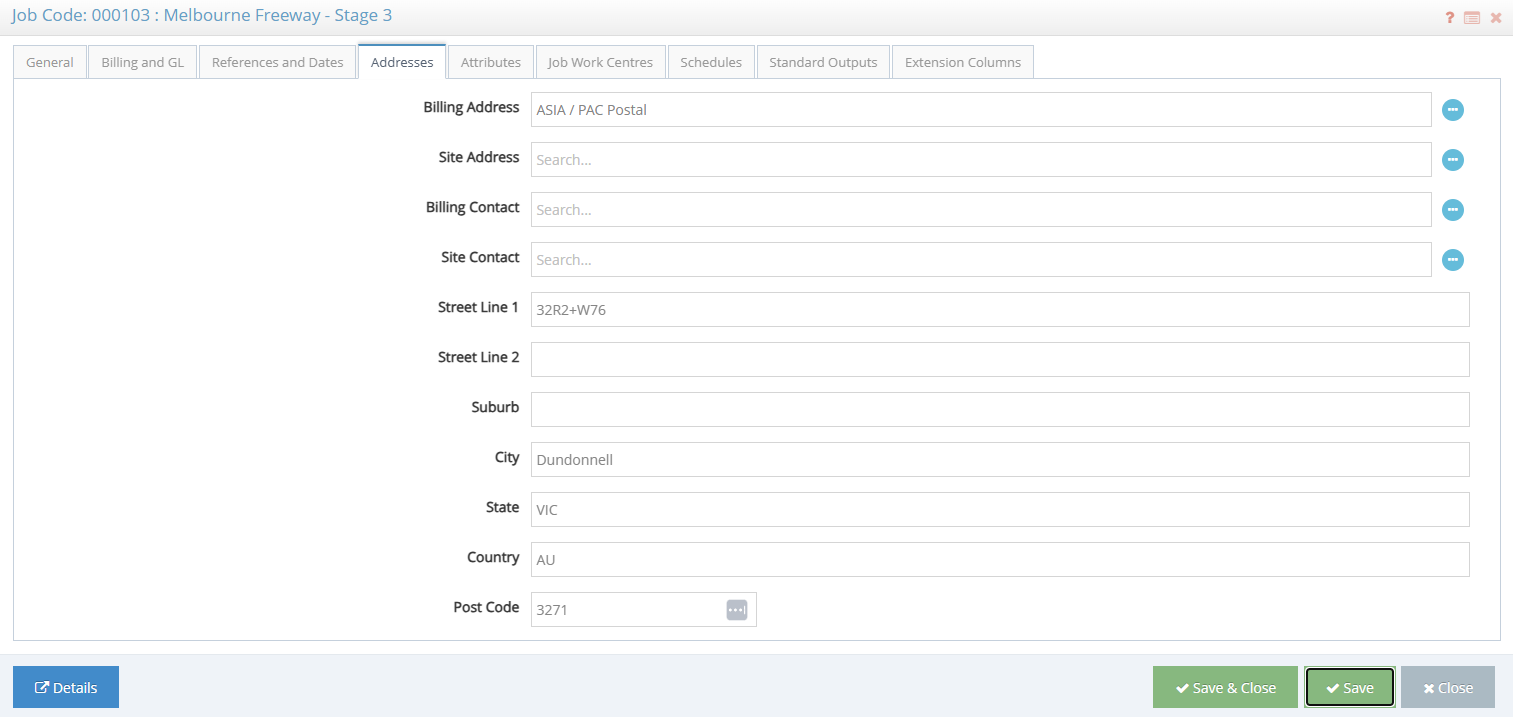
- Paste the address details into the Site Address fields in Workbench Job Addresses tab
Mobile (Google Maps App)
Open the Google Maps app.
Long-press on the map to drop a pin.
Tap the location information card.
Locate and tap the Plus Code.
Google Maps will show the nearest street address.
Copy the address details.
Save and use to input the details into the Workbench Job Site Address.
Example:
When no formal street address exists, the Plus Code can be stored in Street Line 1 so that:
The location remains uniquely identifiable
Mapping and navigation links can still be generated
The record contains a precise reference point
| Workbench Field | Value to Enter |
|---|---|
| Street Line 1 | 32R2+W76 |
| Street Line 2 | (leave blank) |
| Suburb | |
| City | Dundonnell |
| State | VIC |
| Country | AU |
| Post Code | 3271 |
Syncing Address Updates to Upvise
Once the address has been saved in Workbench:
The update will automatically sync to Upvise during the next hourly synchronisation.
The linked Project record in Upvise will be updated with the new address details.
No manual action is required to push the address change to Upvise.
Viewing Projects on the Map in Upvise
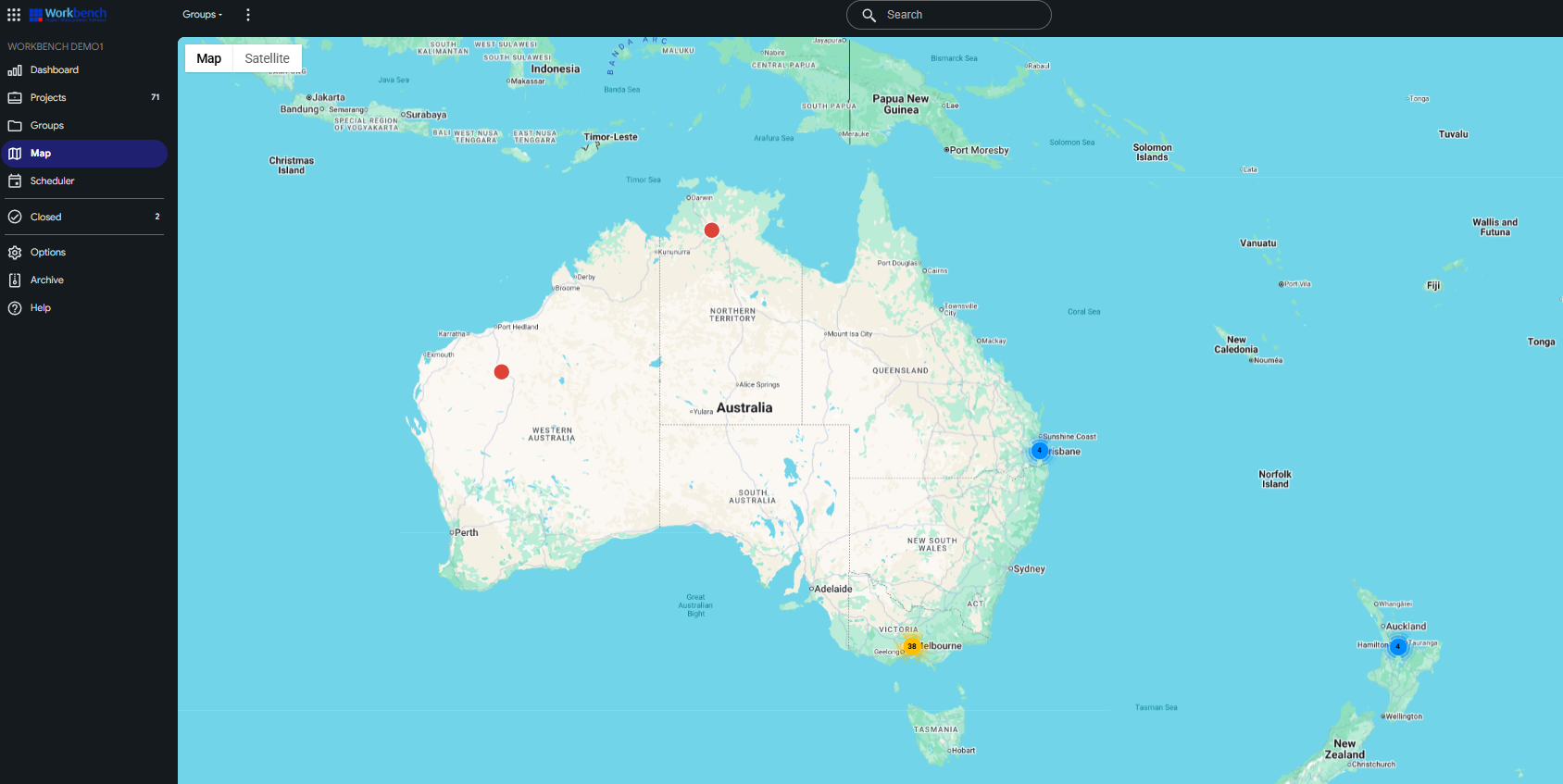
Upvise includes a Map Selection view that displays Projects based on their Geocode (latitude and longitude).
Projects with valid geocodes will appear as pins on the map.
Projects without geocodes will not appear.
➕ Generating Geocodes for New or Updated Projects
If a Project does not appear on the map:
Open the Map Selection view in Upvise.
Select the No Geocode tab.
Click Batch Geocode in the top menu.
The system will search for missing geocodes based on the saved address data.
Matching Projects will be updated and added to the map.