Overview
When using column filters in Upvise, you can apply filters (such as date filters, text filters, or dropdown filters) to narrow down your results. These filters are persistent, meaning they remain applied even after navigating away or refreshing the page.
What does this mean?
- Filters remain applied when navigating between pages
- Filters remain applied when returning later
This behaviour is by design and helps users maintain their working view without needing to reapply filters each time.
This provides the following benefits:
- Saves time — No need to reapply filters each time
- Maintains your view — Keeps your working list consistent
- Personalised workflow — Each user can keep their preferred filters
- Reduces confusion — Helps ensure you're viewing the correct data
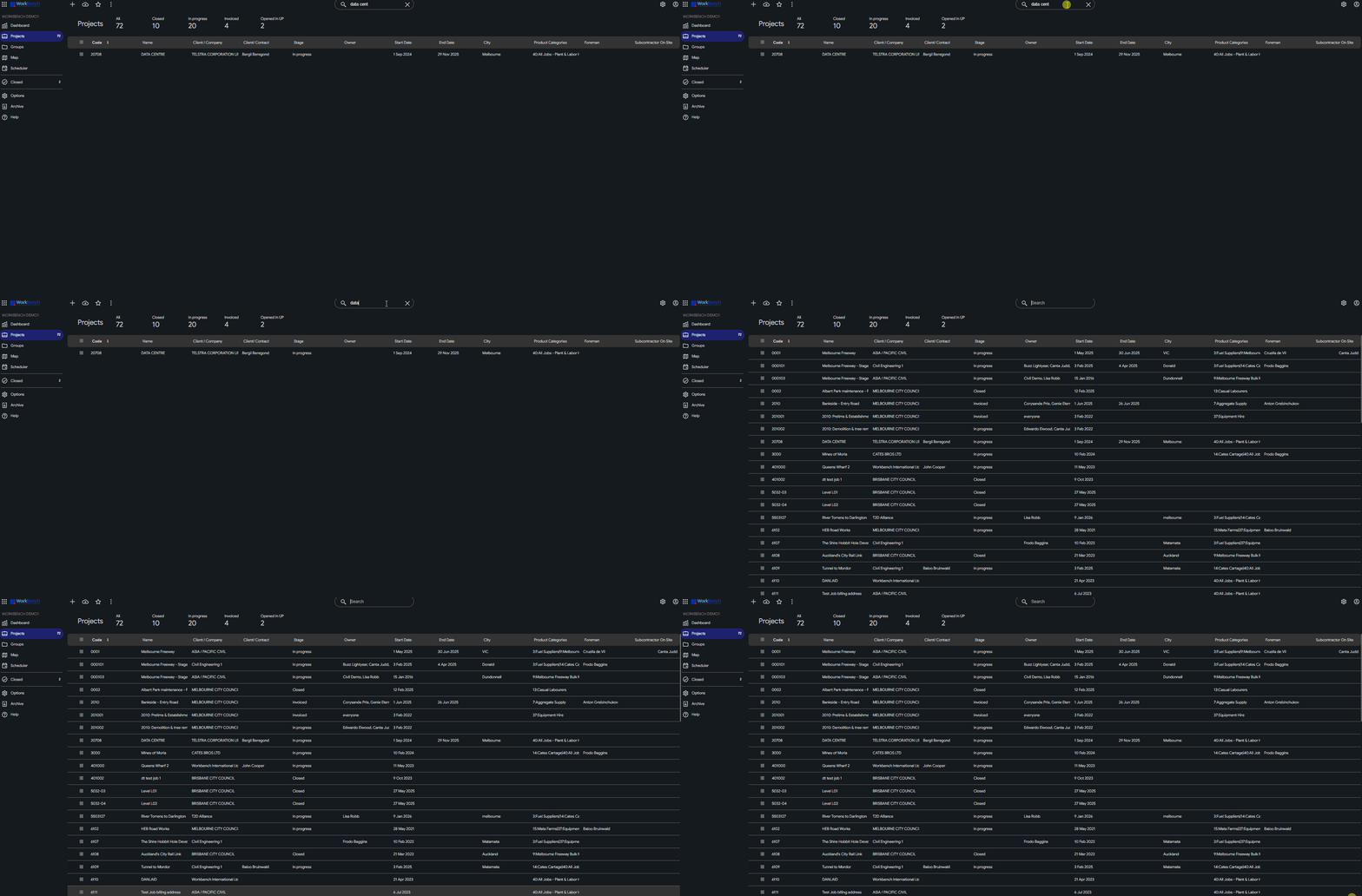
Clear Using Backspace (Recommended)
This is the quickest and easiest way to clear a filter.
- Open the relevant list view (e.g., Forms, Jobs, Equipment, etc.)
- Locate the column where the filter has been applied
- Click into the filter field
- Press Backspace to remove the filter value
- Press Enter
The filter will immediately clear and the full list will be restored.
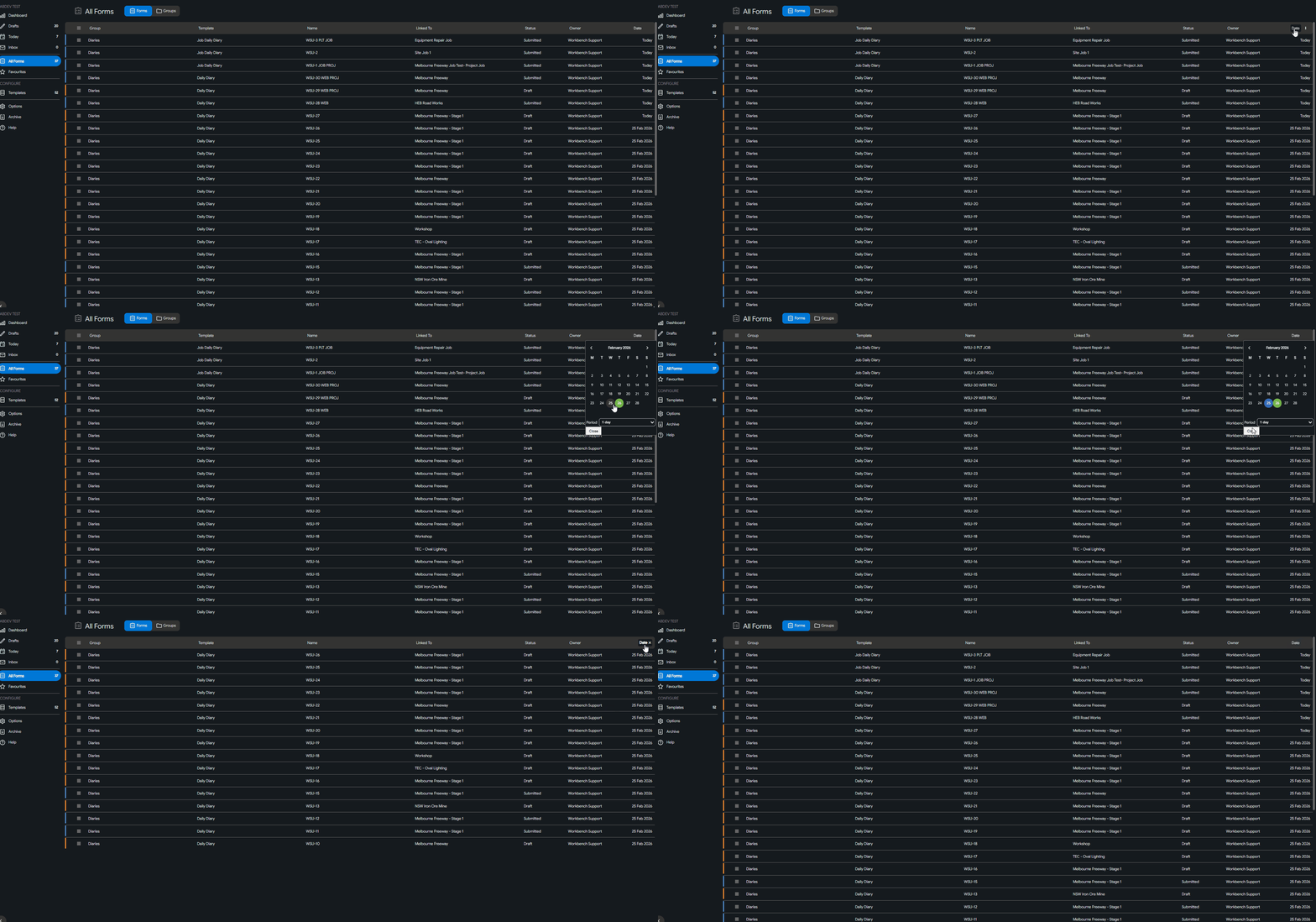
How to Clear the Date Filter
Open the relevant list view (e.g., Forms, Jobs, etc.).
Locate the column where the date filter has been applied.
Click into the date filter field to open the date picker.
In the date picker, right-click inside the blue highlighted area (the selected date range).
The filter will immediately reset and clear.