
Upvise allows bulk export of files directly from the Files module. This is useful when you need to extract multiple photos or documents at once — for example, providing site photos to a client, exporting documentation for audits, or downloading records for offline storage.
Bulk file export will generate a single ZIP file containing all selected files.
Steps to Export Files in Bulk
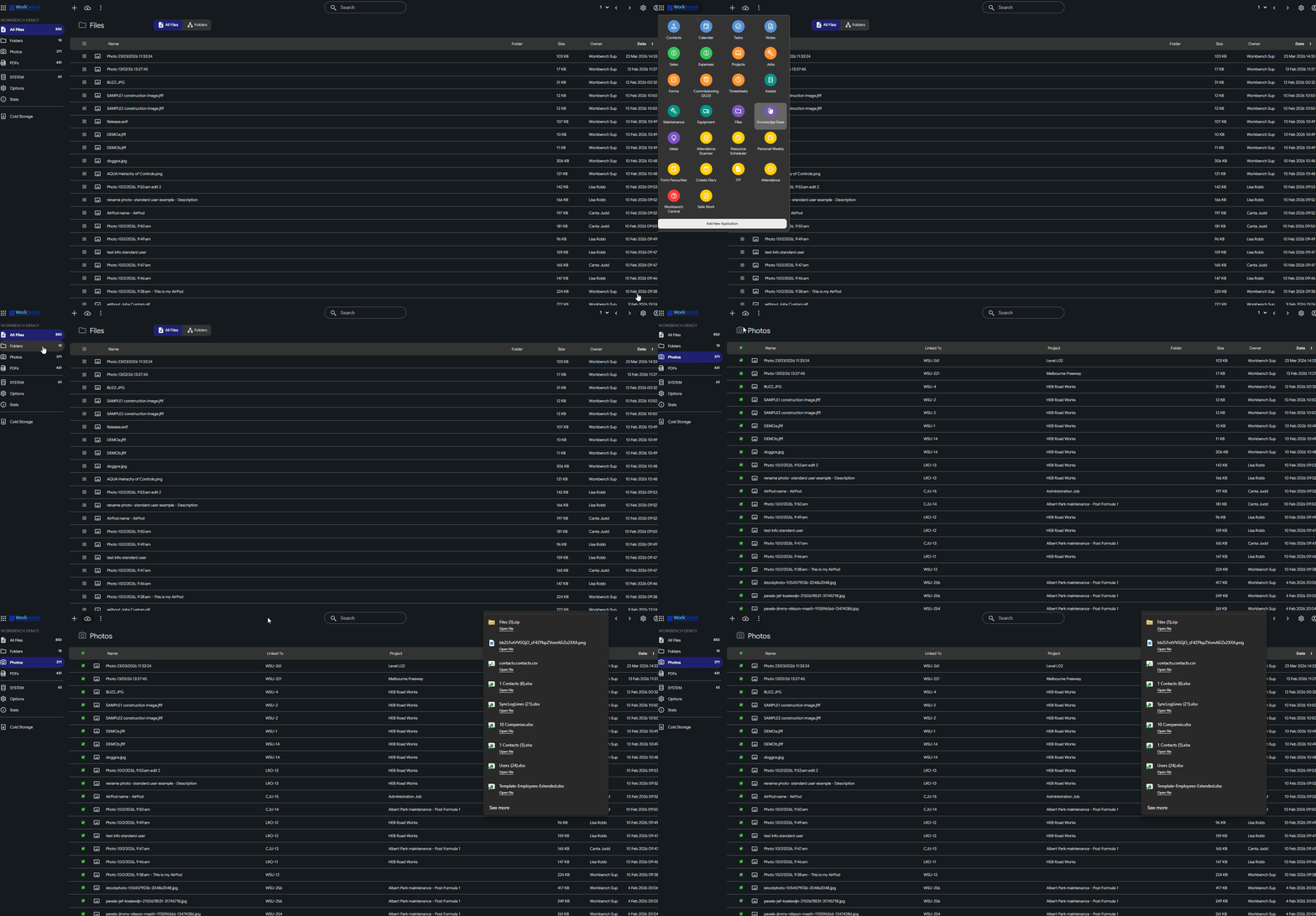
1. Open the Files Module
- Navigate to Files module from the main menu
- This will display all available files within the database

2. Filter Files (Optional)
Use filters to narrow down the files you want to export. For example:
- Folder
- Owner
- Date
- File Name
Filtering first ensures only the required files are included in the export.
You can also use the navigation options in the left pane to select a file type such as Photos.
3. Bulk Select Files
- Use the checkbox column to select multiple files
- You can:
- Select individual files
- Use the header checkbox to select all visible files
4. Export Selected Files
- With multiple files selected, click the Cloud Download icon
- Upvise will generate a ZIP file containing all selected files
Result
- A ZIP file will download to your device
- Each selected file will be included individually within the ZIP
Screen Guide
Related:
Why Upvise Exports Files in a ZIP Folder & How to Extract Them