
Overview
Upvise includes built-in two-factor authentication (2FA) to enhance account security by requiring an additional verification step during login.
The current 2FA method uses email-based verification, where a code is sent to the user’s registered email address and must be entered to complete login.
Getting Started
To use 2FA in Upvise, ensure the following:
- Each user has a valid, unique email address configured
- Users have access to their email inbox at the time of login
- Email delivery is functioning correctly (not blocked by spam filters)
- 2FA is ENABLED on the individual users account.
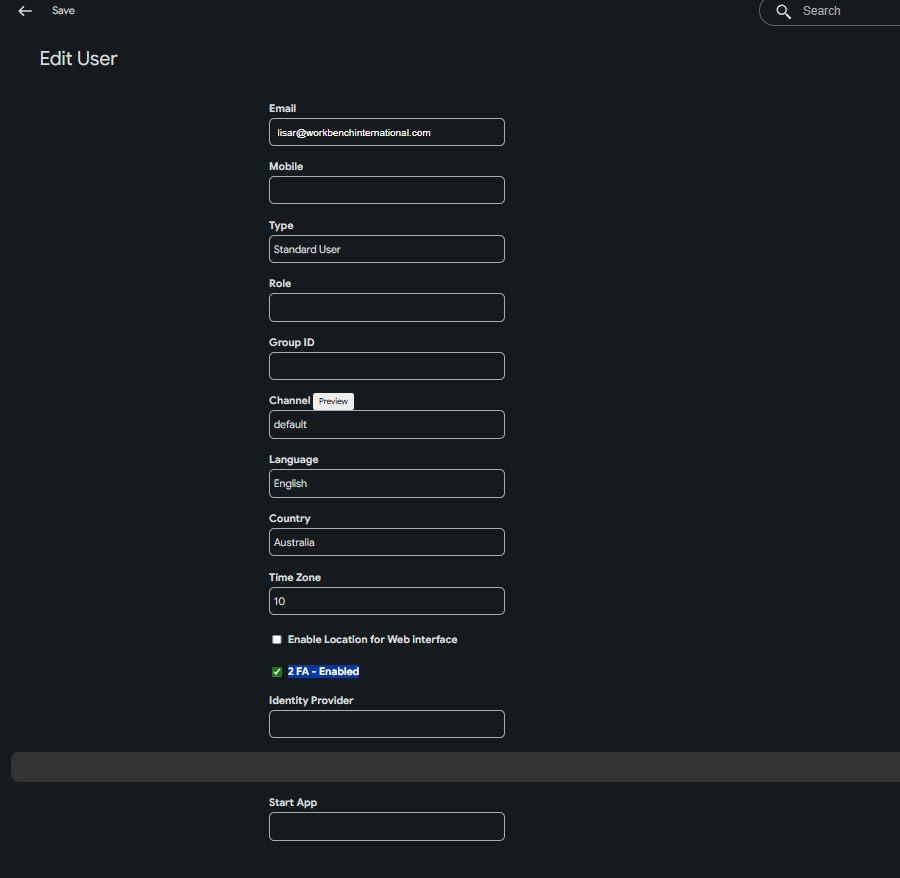
Once these requirements are met, users will be prompted to enter a verification code sent to their email when logging in.
Screen Guide
Step 1 – Login
Enter your username and password as normal on the Upvise login screen. 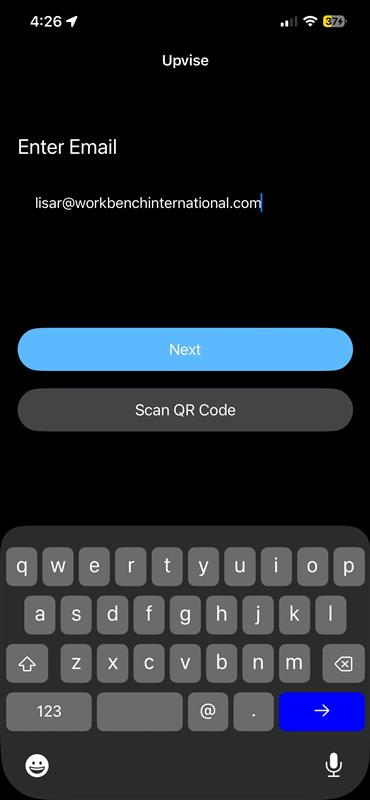
Step 2 – Verification Code
After successful login credentials:
- A verification code is sent to your registered email address
- Open your email inbox and locate the code
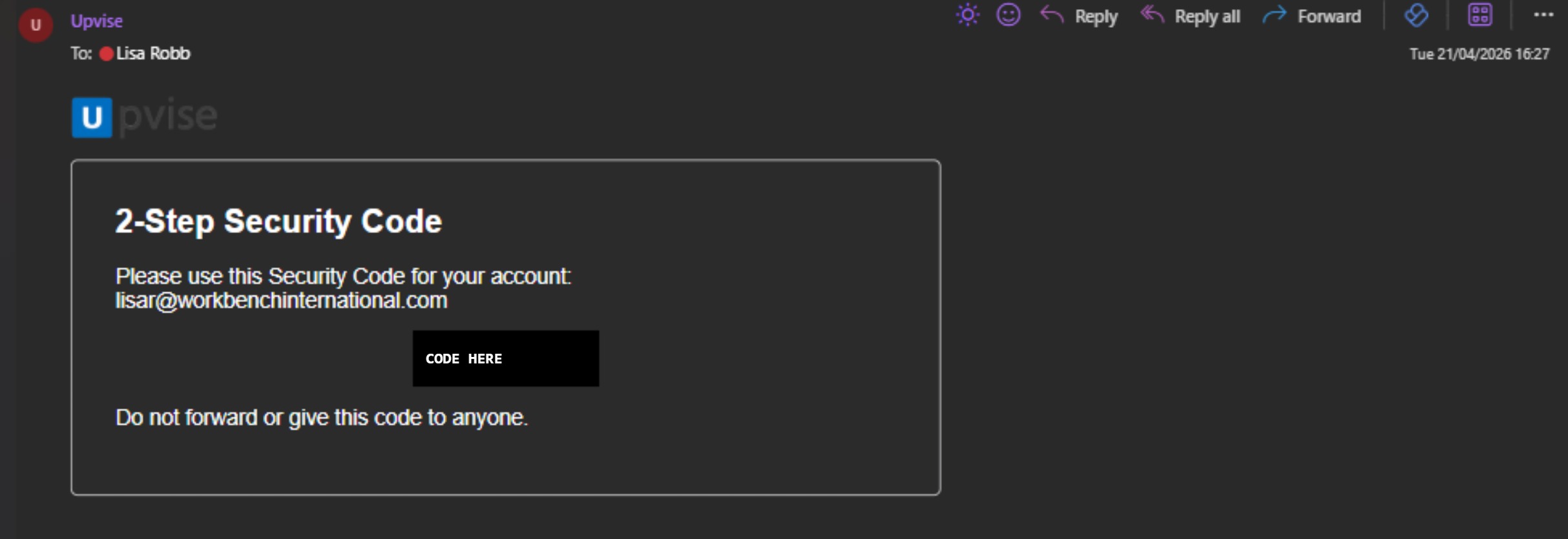
Step 3 – Enter Code
Enter the verification code into the prompt displayed on screen. 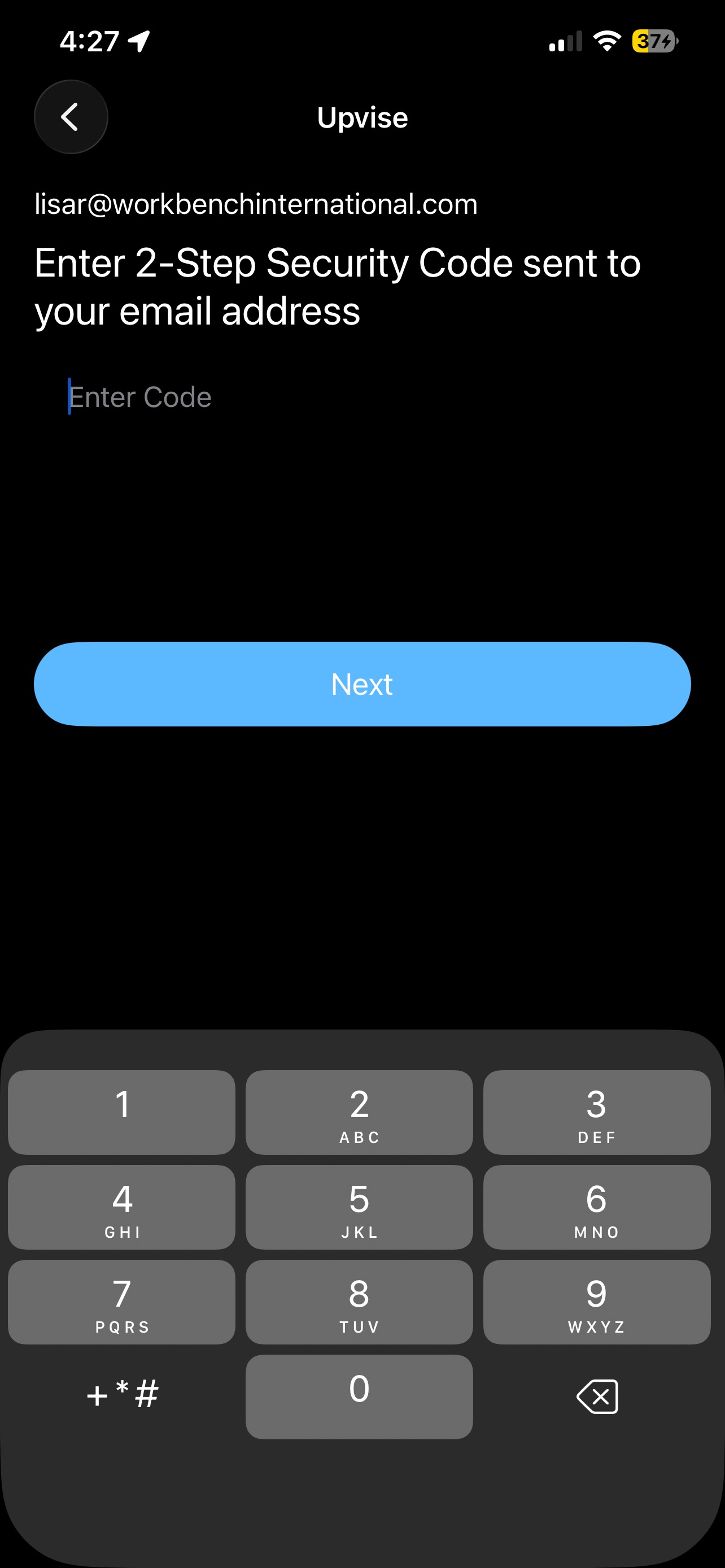
Step 4 – Access Granted
Once verified, you will be logged into Upvise and can continue as normal.
Out of Scope
The following authentication methods are not currently supported:
- Integration with Microsoft Entra ID (Azure AD / SSO)
- Use of Microsoft Authenticator or other authenticator apps
- Microsoft 365 / O365-based authentication
- Third-party identity providers (e.g. Okta, Auth0)
- Custom or advanced authentication configurations