
Overview
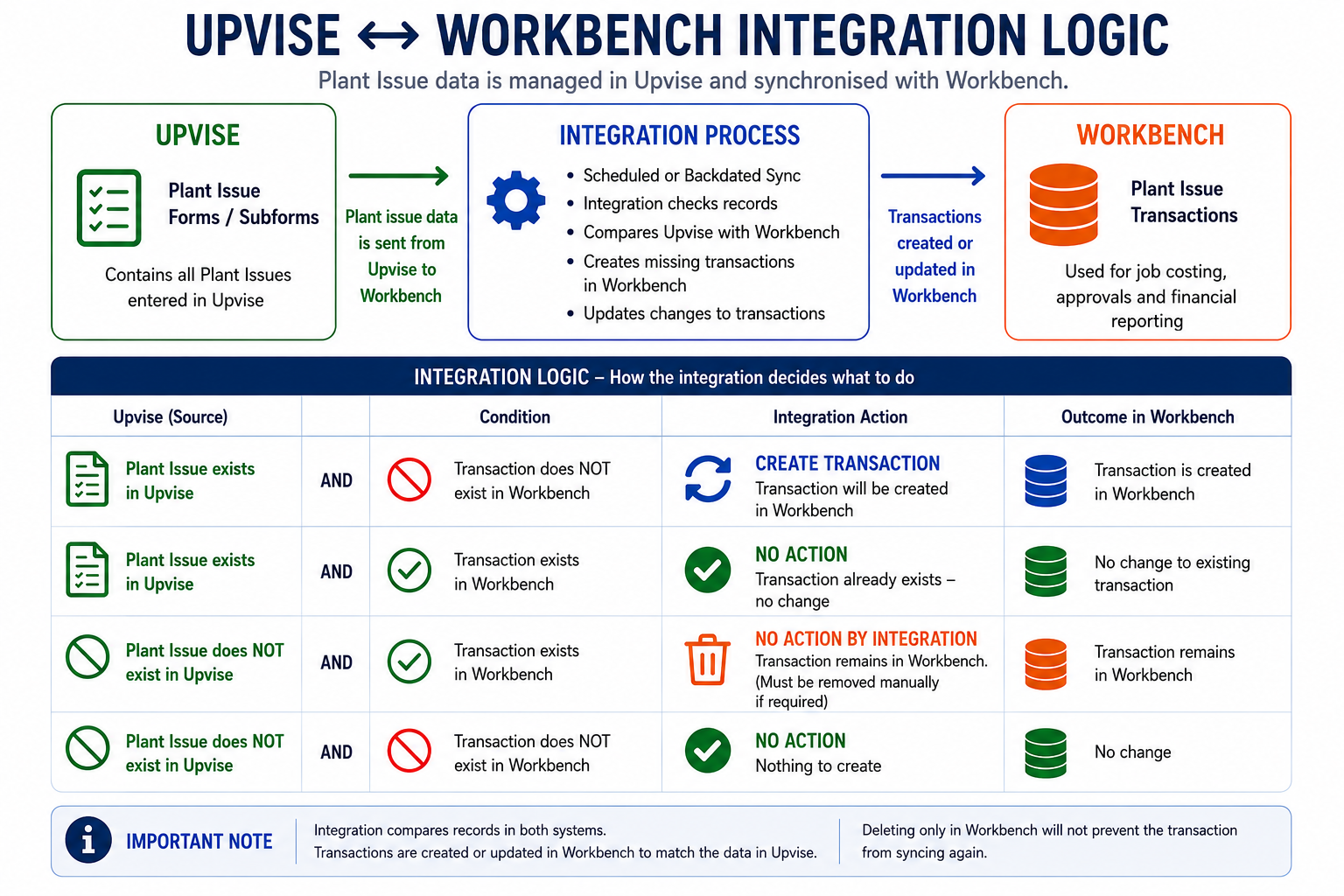
When Plant Issues entered in Upvise are synced to Workbench, deleting the transaction only in Workbench is not sufficient to stop it from returning.
During scheduled or backdated syncs, the integration checks for transactions that exist in Upvise but are missing in Workbench and will automatically recreate them.
To permanently remove a Plant Issue, the original Upvise record must also be deleted.
This means:
- Deleting transactions only in Workbench may cause them to re-sync
- The related Upvise form or subform must also be removed to prevent future syncing
Closed Period Behaviour
Plant Issues dated in previous months may still sync into Workbench if the original Upvise record exists and the transaction is missing in Workbench.
Where the original transaction date falls within a closed Workbench period:
- the original transaction date is retained
- however, the Plant Issue is generated in the latest open Plant Issue batch
Example
If:
- the Plant Issue date is January
- January to March are closed
- April is the current open period
Then:
- the transaction date will remain January
- the Plant Issue will be created in the April batch
This is expected behaviour, as the integration cannot create batches in closed Workbench periods.
Options for Managing Incorrect Plant Issues
Option 1 — Delete the Plant Issue Subform in Upvise
Use this option when the Plant Issue was entered incorrectly and should be fully removed from both systems.
Steps
- Open the original Upvise form or diary
- Locate the Plant Issue subform entry in workbench central - generated time list view
- Select the form using the "check box" and Delete the Plant Issue subform
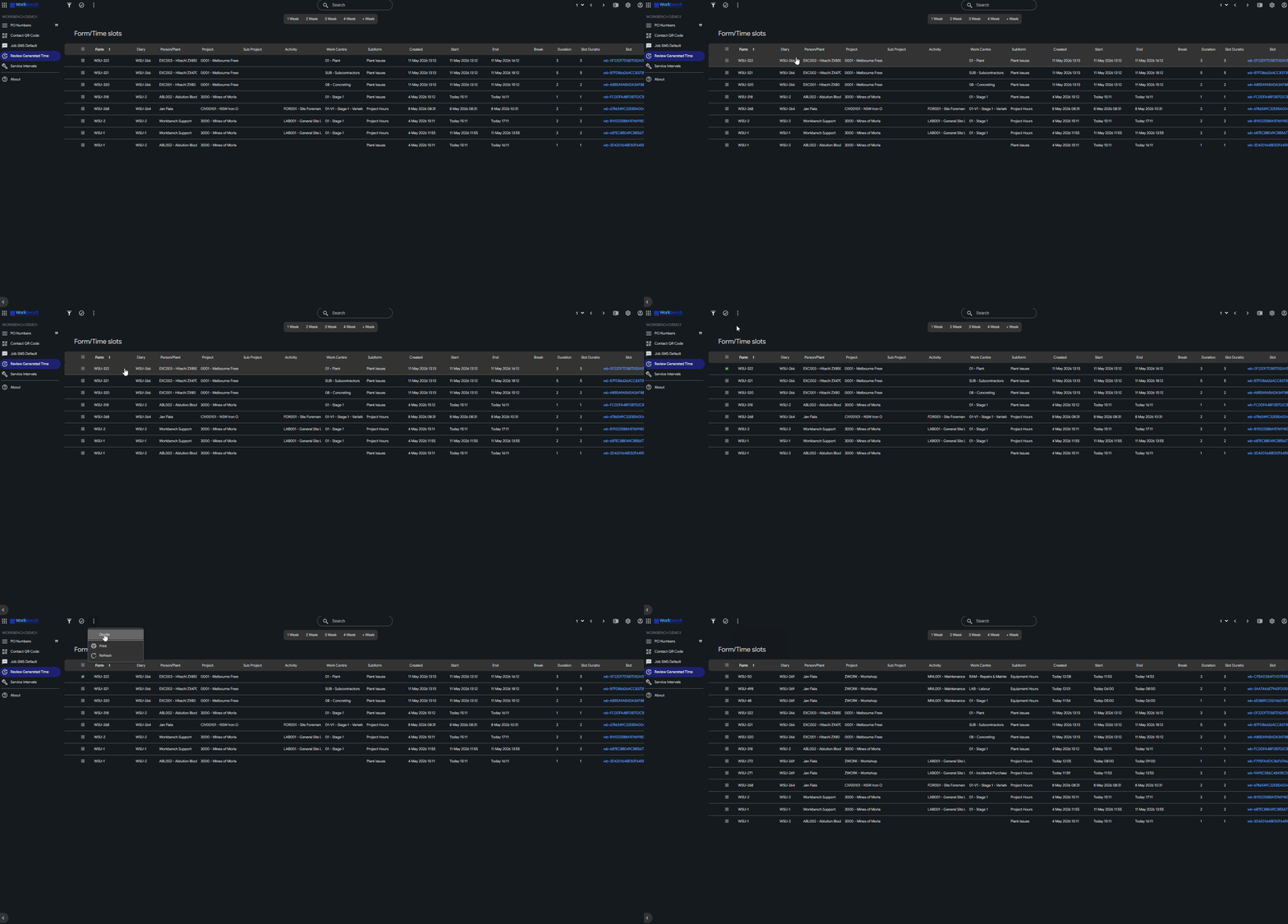
- Delete or make the costs $0 for the corresponding transaction in Workbench if required
- Run the next scheduled sync or perform a backdated sync
- Once the Upvise source record has been removed, the transaction will no longer sync back into Workbench.
If multiple plant issues are recorded within a single Plant Issue subform, deleting the subform removes all plant issues contained within it.
Example
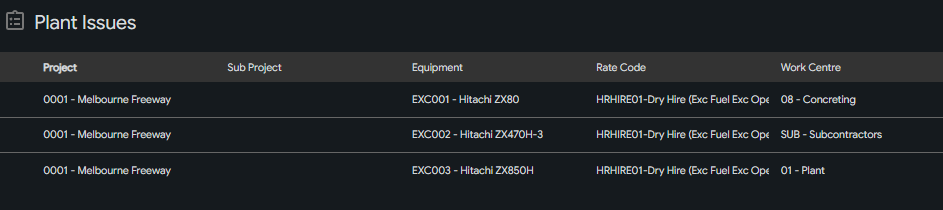
One subform contains:
- EXC001
- EXC002
- EXC003
Deleting that subform removes all three plant issues in upvise
If only one plant item needs to be removed, the recommended approach is:
- record each plant item using a separate Plant Issue subform in the daily diary
This allows individual plant entries entered in error to be deleted independently without affecting other valid plant issues.
| Multiple Plant items in one subform | 1 plant per subform |
 |  |
Option 2 — Write Off the Transaction in Workbench
Use this option when the transaction should remain for audit/history purposes but should not impact costing or invoicing.
Suggested Workbench Changes
Update the transaction to be costed at $0. You want the values in the transaction to reflect the below:
- $0 Retail
- $0 Sell
- Invoice flag = 0
- Invoice number/reference =
99999999 (Written Off)
This allows the transaction history to remain visible while preventing financial impact, and preventing the i nvalid plant issues from re-sycing from upvise.
Important Note
If the original Plant Issue still exists in Upvise and the transaction is fully deleted from Workbench, it may sync back again during future syncs.
Option 3 — Consider Implementing a Workflow in Upvise (prevention)
Clients may wish to implement additional workflows or validation processes in Upvise to ensure only valid plant transactions are submitted before syncing to Workbench.
Example:

This can help reduce:
- Duplicate transactions
- Manual corrections & double handling in workbench & upvise
- Incorrect plant costing on Jobs
- Re-syncing of deleted transactions in workbench