
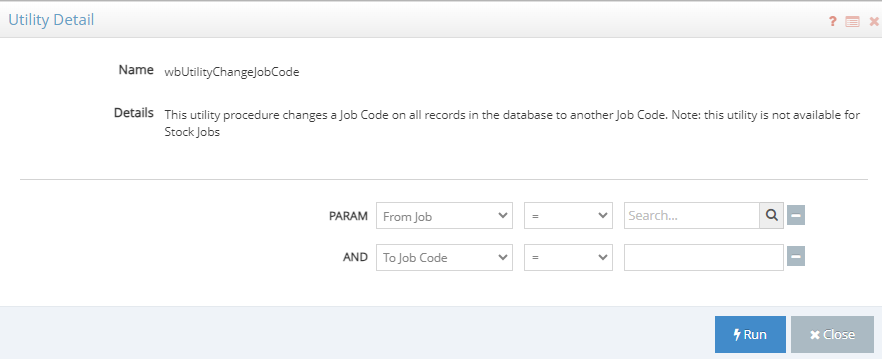
Workbench provides a utility called wbUtilityChangeJobCode. This procedure updates all records in the database with a new Job Code, or Plant Code. To ensure the changes are properly reflected in Upvise, follow these steps:
Step 1: Run the Utility to Change the Workbench Plant Code
Execute the wbUtilityChangeJobCode utility in Workbench.
Confirm that the Plant Code has been updated across all relevant records.
Step 2: Perform a Manual Data Sync in Workbench
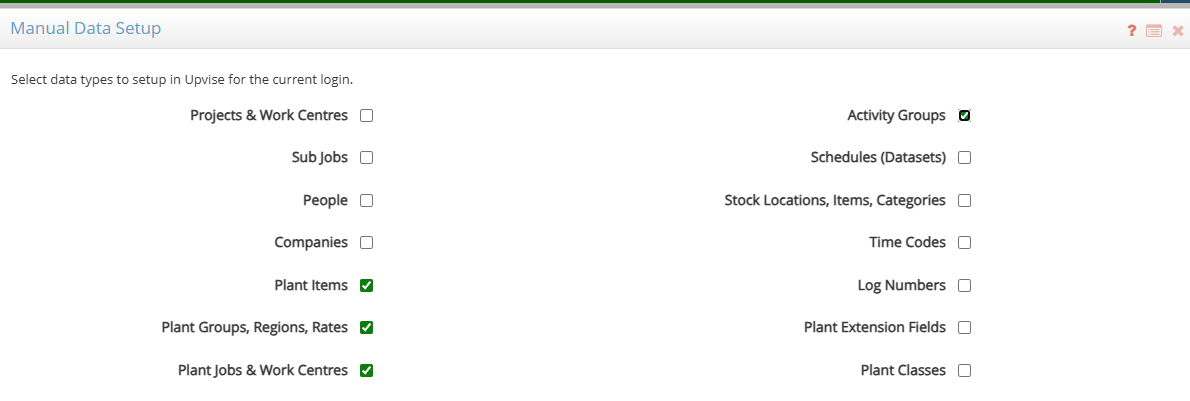
Navigate to the Upvise Integration screen in Workbench.
Perform a Manual Data Sync on Plant Items, Activity Groups, Plant Rates and Plant Jobs & Work centers to push the updated data to Upvise.
Step 3: Sign out of Upvise
How do I Signout/ Logout of Upvise?
Step 4: Sign back in after the sync has completed & verify the Plant Code/ Equipment ID is updated in Upvise
The existing Equipment in Upvise will be updated automatically via the integration.
Related:
- How do I change a Job Code?
- How do I change a Job Code in Workbench & related Project Code in Upvise?